Showing posts with label G Sensor. Show all posts

Auto Rotate for the Android Browser

I'm not sure why the Android Browser doesn't auto rotate by default. Instead they have a "Flip Orientation" menu item that lets you toggle your default orientation. Pretty useless overall. Anyhow, a quick hack in the Browser source code let me enable auto rotation via the G-Sensor.

The change is really trivial. In the BrowserActivity.onCreate, I hard coded the orientation to ActivityInfo.SCREEN_ORIENTATION_SENSOR instead of pulling it from a preferences setting.

The downside is that the flip orientation menu item no longer works. Not that I care: I (and probably most people) never used it. So it is a hack, but oh well. If I'm motivated I'll put in a proper fix.

Installation Instructions (you must have root access):

  • Download the updated Browser.apk
  • Run the following from the command prompt to back up your current Browser file to your sdcard and install the new one:
    • adb remount
    • adb pull /system/app/Browser.apk BrowserBackup.apk
    • adb push BrowserBackup.apk /sdcard
    • adb shell rm /system/app/Browser.odex
    • adb push Browser.apk /system/app

Klaxon - An Accelerometer Enabled Alarm Clock for Android

KlaxonMain KlaxonAlarmEdit KlaxonRingtoneType KlaxonClockTypes KlaxonAlarm

This is the Android version of Klaxon, the popular Windows Mobile Alarm Clock. In addition to the standard features of the default Android Alarm Clock application, Klaxon has the following features:

  • Flip your phone over to snooze it.
  • Wake up to a song stored on your SD card.
  • Customize your snooze time.
  • Additional clock faces.

You can find Klaxon on the Android Market! And for those of you that can't access the market, you can download the Android version of Klaxon here.

GL Maps - Your World is 3D and Your Maps should be Too

Screen01

So what happens, when you take the Sensor API, Managed OpenGL ES, a Tiled Map Client, and Seattle Metro Bus Web Service and mash it all into a single application? An accelerometer  controlled 3D map viewer with real time bus tracking of course. The level of awesomeness of this application is difficult to explain unless you have an HTC Touch Diamond to play with. I'll release a video shortly.

In addition, I've updated the Tiled Map Client code significantly to support multiple rendering engines (currently GDI and OpenGL ES). There's a minor breaking change for existing users, but quite a few new features have been added. I'll release that code after I finish bug fixing.

Here's the CAB file for GL Maps for those interested Diamond users.

Usage:

  • You can pan using your finger obviously.
  • Use the Nav wheel to zoom in and out.

Upcoming Features:

  • Fully 3D terrain
  • Directions
  • Search
  • Map Overlays such as Satellite, Terrain, and Traffic
  • "Over the Shoulder" mode for when you are driving, the camera will be behind your car and following you

Note:

The Red Bubble that you see in Seattle is where I live. I will be changing that in a future location to be the user's approximate location.

Klaxon - Accelerometer/G-Sensor Enabled Alarm Clock now supports the Samsung Omnia!

Klaxon2ScreenshotKlaxon2EditSmall Klaxon2SettingsKlaxon2AlarmScreenshot

Samsung Omnia users will be pleased to hear that Klaxon now supports their accelerometer. That's the only change in 2.0.0.18. Click here for the Klaxon CAB setup file.

Using Samsung Omnia's Accelerometer/G-Sensor from Managed Code

Many months ago, I wrote an API to access the HTC Touch Diamond's Accelerometer from managed code. Those who investigated the code a bit deeper probably noticed that I had stubbed out an interface, IGSensor. I did that in anticipation that many Windows Mobile devices in the coming months would include an accelerometer. It turns out I was right. The idea behind the IGSensor interface was to provide a generic unified API that a developer could use to access the accelerometer of any device without having to worry about which device it was.

Anyhow, I'd gotten several requests to investigate the Samsung API, if there was one. Not an Omnia owner myself, I wasn't particularly motivated. Then yesterday, one of the requestors informed me that Spelomaniac from modaco.com had figured out how to access the Samsung Omnia's accelerometer.

We happened to have an Omnia at my workplace, Kiha, so I grabbed that, and ported the code so it was supported by my API. So yeah, it's all working!

I highly recommend that all developers to download the updated API and make the minor changes necessary so that Omnia users can make use of the HTC Touch Diamond accelerometer applications! Here are the new breaking changes in the API:

  • HTCGSensor is now a private class.
  • SamsungGSensor is a new private class.
  • Instead of creating a HTCGSensor or SamsungGSensor explicitly, developers should use the new GSensorFactory.CreateGSensor method to get the appropriate IGSensor object for the phone the application is running on.
  • IGSensor is now IDisposable. Developers should Dispose of the object once they are finished using it. Not doing so may leave resources or a thread hanging and the application may fail to exit.

That's it! The code changes you need to make should only take you a few minutes.

Click here to download the new Windows Mobile Unified Sensor API.

I'll be making the changes necessary to Klaxon this weekend so it runs on the Omnia. :)

Here is the original C++ code I for the HTC GSensor emulator in case you are interested. I would not recommend using the HTC Accelerometer emulator, because it does not support Orientation Change notifications through the Windows registry.

HTC Touch Diamond Stylus Sensor API

StylusSensor

I spent a bit of time figuring out how to determine the stylus on the HTC Touch Diamond. It only took like 5 minutes: it was exactly where I suspected, a registry key that toggled depending on the stylus state. So basically it's really easy to access. I rolled access to this registry key up in the Sensor SDK.

(HKEY_CURRENT_USER\ControlPanel\Keybd\StylusOutStatus for those curious.)

The new HTCStylusSensor has 2 members:

StylusState

This property is has a value that is either StylusIn or StylusOut.

StylusStateChanged

This event fires whenever the StylusState property changes.

Click here if you want to download the APIs and source to access the G-Sensor, Light Sensor, Nav Sensor, or Stylus Sensor.


I will be releasing an tool shortly that allows users to launch any application, shortcut, sound file, etc, when the stylus is removed from the device.

Sensory Overload

SensoryOverload

A few days ago I published the Managed OpenGL ES wrapper. As a proof of concept, I went so far as to create a simple game for the HTC Touch Diamond that utilizes the G-Sensor, Nav Sensor, and the 3D hardware capabilities of the device. The end result is a simple "Asteroids" type game I call Sensory Overload.

The game is simple:

  • Move the ship by tilting the device.
  • Don't run into an asteroid.
  • Blow up the asteroids into tiny pieces.
  • When an asteroid spawns (it will be faded out), you have 5 seconds to get away from it before it can hurt you.
  • Rotate the Nav sensor clockwise to fire a bullet.
  • Rotate the Nav sensor counter clockwise to fire a spray of bullets. You can only use this special ability once every 5 seconds.
  • Asteroids spawn every 15 seconds.

This is mostly intended as a demo or proof of concept to provide other developers starting ground to create their own amazing games for the HTC Touch Diamond.

Known Bugs:

  • Small asteroids are hard to explode. The bullets travel "through" them between repaints, so they never actually collide. I may fix this in the future.

Click here to download the full source to Sensory Overload.

Click here to download the Sensory Overload CAB file to play the game.

Another Klaxon Release

As promised, I implemented more bug fixes and features for this release. Download Klaxon here.

  • The light sensor will only turn off your alarm if the phone is face up. This fixes the issue where the alarm gets shut off if the phones if flipped face down to snooze.
  • If the phone is snoozing, a sensor can not be used to turn the alarm off. The off button must be manually pressed. This is a precaution to ensure the phone doesn't get erroneously turned off.
  • The shake off function is implemented differently now: if at any point, the phone is subject to 20 G's of force, it will turn off. Previously, it was using an orientation change count. The G measurement method is much more reliable.
  • As a silent confirmation, the phone will vibrate once if you put it into Snooze mode. It will Vibrate twice if you turned it off.
  • All the sensor actions are configurable: you can now manually configure what you want the alarm to do when you shake it, flip it, or turn on the light.
  • Implemented some of the UI clean up changes. This includes bigger Vista style check boxes and radio buttons.
  • Implemented an About box which gives you information about your Klaxon version and the author.
  • Fixed a bug where the registry entries were not being deleted properly when an alarm was deleted.
  • Fixed a bug where the device would go to sleep after a Snooze and not wake up to alarm the user.
  • Fixed a bug where the Delay setting was not being saved after editing it.

Klaxon: Windows Mobile G-Sensor and Light Sensor Enabled Alarm Clock

klaxon

I mentioned a post ago that I was working on this. Well it's getting close to completion, and wanted to provide people something to give some feedback on. Right now the finishing touches are in the artwork. Beyond the first screen, the buttons and artwork are really ugly!

You can download Klaxon here.

Using Klaxon is pretty straightforward; it's more or less like the standard Clocks and Alarms application.

G-Sensor Instructions:

  • Flip your phone over to snooze.
  • Shake your phone to turn the alarm off.

Not yet implemented:

  • Artwork (I need to create pretty images to use for buttons)
  • Turn off the alarm if the light comes on in the room (using the Light Sensor!)
  • Turn on the phone light for 15 seconds, so you have a chance to turn off the alarm before it goes off.

Omnipresence, at least that's what I'm calling it. My Windows Mobile Remote Desktop Replacement.

1

Has been a busy weekend. I've been working on a new Remote Desktop/Device type application that is built with mobile devices in mind. I've written the code such that it works on any platform that supports .NET. All the platform has to do is know how to scrape a screen shot, send a mouse click, and send a key click. This made the Windows and Windows Mobile clients and servers trivial to implement.

I've leveraged some of the cool sensors on the Diamond obviously: changing the device's orientation rotates the target screen to match. And the Nav wheel is used as a zooming function, similar to Opera!

Note/Update: This client does NOT work with Remote Desktop. It is a complete replacement for both the client and the server. It uses a completely different protocol, is a platform independent application (well, theoretically it is since it is written in .NET), and very mobile device friendly.

I realize this may disappoint some, but I have absolutely no desire to reengineer Microsoft's protocol. The current RDP Windows Mobile client has two problems:

  1. The WM6 RDP client is very mobile device unfriendly. You can't zoom, finger pan, and you have no idea where you clicked. On many devices, it does not even work. Microsoft supposedly has no plans to maintain it.
  2. Logging in via Remote Desktop locks your screen. I want to be able to use my phone as a true "remote". For example, managing songs playing on the computer, doing power point presentations, etc. Locking the screen is not what I want to happen in these scenarios.

I did not start writing this with plans to have it be an administration tool in mind. Internally, I've actually been using Omnipresence to connect to an Omnipresence server, and then use Remote Desktop on the server to access any other machine that does not have Omnipresence installed.

Screen shots for your viewing pleasure:

3

2

Portrait

Landscape

Full Screen

4

omniwm

5

Remote Typing

Emulator connected to HTC Touch Diamond

Full Screen + Zoomed In

omnipresence

Windows Desktop connected to HTC Touch Diamond

HTC Touch Diamond Nav Sensor API

diamondnav

Scott, from scottandmichelle.net, figured out how to detect which way the nav sensor was being moved. I did some further investigation with the data output and managed to figure the rotation per second readings that were also being returned with it.

The new HTCNavSensor has a single event:

Rotated

This event fires whenever the Nav sensor event is detected. The rotation event will provide the user with an approximate rotation per second value and a radial delta. The radial delta is a double value that describes how much the user has moved along the nav sensor since the last time the event was fired. I.e, a radial delta value of .25 would mean that the user moved his finger around a quarter rotation since the last the last time the nav sensor event fired.

As usual, the updated API can be downloaded here. The other sensor APIs (accelerometer and light sensor) are also available in the same zip file. So that wraps up accessing all the different sensors on the HTC Touch Diamond!

Let me know if you find any bugs!

Edit: I found a bug where the nav sensor was reporting clockwise movement when actually moving clockwise. Fixed that. Also updated the Nav Sensor Test to show a red line that rotates as you rotate around the sensor.

Using HTC Touch Diamond's Accelerometer/Sensor SDK from Managed Code

When I first got my HTC Touch Diamond a while ago, one of the first things I tried to do was reverse engineer the Sensor API found in HTCSensorSDK.dll. However, anyone who has tried to reverse engineer DLL arguments knows how tedious and painful it can be to create a dummy DLL to intercept valid arguments, parse through assembly, and inspect random memory pointers. Luckily, I did discover a registry key: HKEY_LOCAL_MACHINE\Software\HTC\HTCSensor\GSensor\EventChanged which let me figure out what the general orientation of the device was; and that was good enough for what I was trying to do.

However Scott, from scottandmichelle.net, successfully reverse engineered the HTCSensorSDK.dll. This allows developers to use the g-sensor that is available on the device. Very impressive work on the part of Scott!

Anyhow, I spent a portion of today writing a managed wrapper for HTC's Sensor API. You can download it here. The code also includes a sample Teeter-esque type application which allows you to roll a ball around the screen.

The managed API contains the IGSensor interface which allows you to hook to query the state of the g-sensor on the device. You can create it using the GSensorFactory.CreateGSensor method. It exposes the following methods, properties, and events:

GetGVector

Returns a vector that desribes the direction of gravity/acceleration in relation to the device screen.
When the device is face up on a flat surface, this method would return 0, 0, -9.8.
The Z value of -9.8 would mean that the acceleration in the opposite direction of the orientation of the screen.
When the device is held standing up, this method would return 0, -9.8, 0.
The Y value of -9.8 would mean that the device is accelerating in the direction of the bottom of the screen.
Conversely, if the device is held upside down, this method would return 0, 9.8, 0.
The vector returned will have a length measured in the unit meters per second square.
Ideally the when the device is in a motionless state, the vector would be of length 9.8 (the gravitational constant). However, the sensor is not extremely accurate, so this almost never the case.
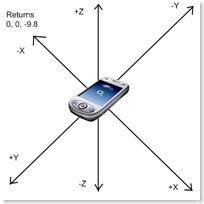
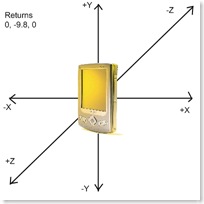
faceup portrait

Orientation

Retrieves the current orientation of the device, returning one of the following enums: Landscape, ReverseLandscape, Portrait, ReversePortrait, FaceDown, FaceUp.

OrientationChanged

This event fires whenever the device's orientation changes.

Enjoy, and let me know if you find any bugs!


Update:

I have updated the SDK to include the Nav Sensor and the Light Sensor. All the sensors are now accessible!

Update #2:

The GSensor API now supports the Samsung Instinct/Omnia!